PHP exec system calls not working in Debian 6

After migrating Current website to Debian 6, PHP calls exec and system stopped working.
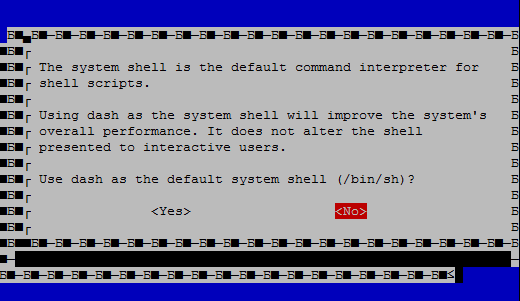
The reason for it is debian package dash which modifies behaviour of system default shell:


# ls -l /bin/sh
lrwxrwxrwx 1 root root 4 Dec 9 20:25 /bin/sh -> dash

To revert this this behaviour to standard, execute


# dpkg-reconfigure dash

dash dpkg-reconfigure debian linux

Select “No” and default shell will be changed to standard bash.

You can check it with following command:


# ls -l /bin/sh
lrwxrwxrwx 1 root root 4 Dec 9 20:26 /bin/sh -> bash

BackTrack Remove disks or other media

After creating a bootable USB image for BackTrack 5 R3 with Unetbootin you may encounter an error:


Remove disks or other media
Press any key to restart

This means you have incorrect image on USB drive.

Simple solution is to use a different ISO to USB utility:

You can download it from following URL:

Universal USB Installer – Bootable Pendrive Software

Ansible No Package matching found available installed or updated

When trying to manage packages with yum module via Ansible, on fresh installed RHEL / Centos Linux systems, you may face following error:


msg: No Package matching 'sendmail-cf' found available, installed or updated

This is caused by missing package yum-utils.

It can be installed with Ansible raw module (also used for installing python-simplejson for Ansible):


ansible 1.2.3.4 -m raw -a "yum -y install yum-utils" --user=userx --sudo

Cisco 800W WiFi configuration example

Cisco 800-series devices have embedded AP in them.

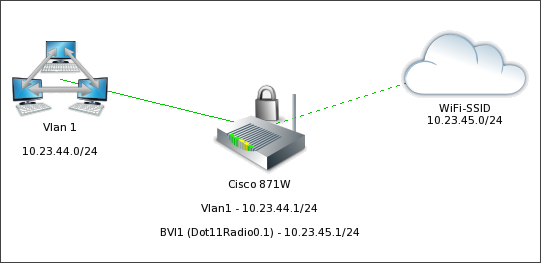
Here is an example of simple configuration of wireless network on these routers (851W, 871W еtс).

In this example Network SSID: WiFi-SSID
Encryption is WPA-TKIP
WPA key: wpakey01
Network: 10.23.45.0/24

dot11 ssid WiFi-SSID
vlan 1
authentication open
authentication key-management wpa
guest-mode
wpa-psk ascii 0 wpakey01

bridge irb

interface Dot11Radio0
no ip address
!
encryption vlan 1 mode ciphers tkip
!
ssid WiFi-SSID

interface Dot11Radio0.1
encapsulation dot1Q 1 native
no cdp enable
bridge-group 1

interface BVI1
ip address 10.23.45.1 255.255.255.0
ip nat inside
ip virtual-reassembly

bridge 1 protocol ieee
bridge 1 route ip

You will probably want to have DHCP for wireless clients as well:

ip dhcp pool WiFi
network 10.23.45.0 255.255.255.0
default-router 10.23.45.1
dns-server 8.8.8.8 8.8.4.4

Don’t forget to add new wireless network to your NAT rule, in order to reach out the Internet.

Dell PowerConnect switch firmware update

Step 1.
Download firmware archive from dell website: ftp://ftp.dell.com/Pages/Drivers/powerconnect-5548-all.html

Step 2 – Extract .ros and .rfb files and place them on TFTP server.
Copy .ros image to system partition and .rfb image to boot partition.


SW01# copy tftp:///powerconnect_55xx-4108.ros system
SW01# copy tftp:///powerconnect_55xx_boot-10014.rfb boot

Step 3 – Check the current boot image.

GEKZNS02# show bootvar

Unit Image Filename Version Date Status
—- —– ——— ——— ——————— ———–
1 1 image-1 4.0.1.11 16-Oct-2011 18:10:50 Active*
1 2 image-2 4.1.0.8 28-Aug-2012 11:17:36 Not active

“*” designates that the image was selected for the next boot

Step 4 – Change the active image to new firmware.

GEKZNS02# boot system image-2

Step 5 – Verify the change.

GEKZNS02# show bootvar

Unit Image Filename Version Date Status
—- —– ——— ——— ——————— ———–
1 1 image-1 4.0.1.11 16-Oct-2011 18:10:50 Active
1 2 image-2 4.1.0.8 28-Aug-2012 11:17:36 Not active*

“*” designates that the image was selected for the next boot

Step 6 – Reboot the switch

GEKZNS02# reload

This command will reset the whole system and disconnect your current session. Do
you want to continue ? (Y/N)[N] Y
Shutting down …
Shutting down …
Shutting down …